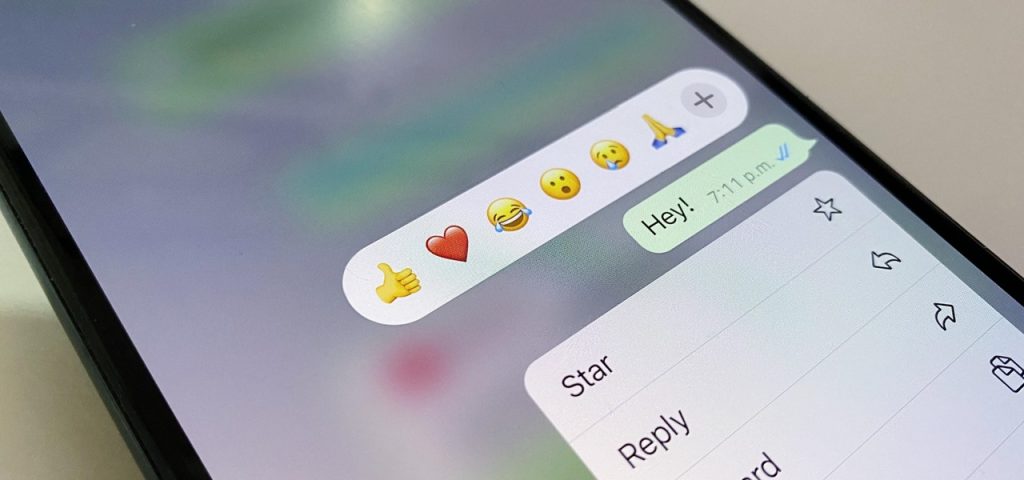
Instead of responding to a WhatsApp message with short texts like “LOL” or thinking too hard about something meaningful to say, use an emoji reaction. They cut down on clutter in group chats and take up less space than typing emoji individually in a conversation. WhatsApp initially limited reactions to just six emoji, but a new update lets you use any emoji you want.WhatsApp first announced emoji reactions for individual and group conversations in April, and the feature began rolling out to everyone in May. Initially, the only emoji you could use were thumbs up, red heart, face with tears of joy, surprised face with open mouth, crying face, and hands pressed together. With the latest update rolling out, you now have free reign over all emoji characters and skin tones.On July 11, WhatsApp tweeted about the expansion of emoji reactions for its Android and iOS apps, and Mark Zuckerberg also announced the rollout on his Facebook and Instagram accounts. Make sure you’re running the latest WhatsApp version on your device, then try out message reactions as seen below. Add a Reaction to a MessageMessage reactions work on the Android and iOS mobile apps, macOS and Windows desktop apps, and…
Read More
How to Use Any Emoji as a Message Reaction in WhatsApp for iOS, Android, Desktop, and Web