
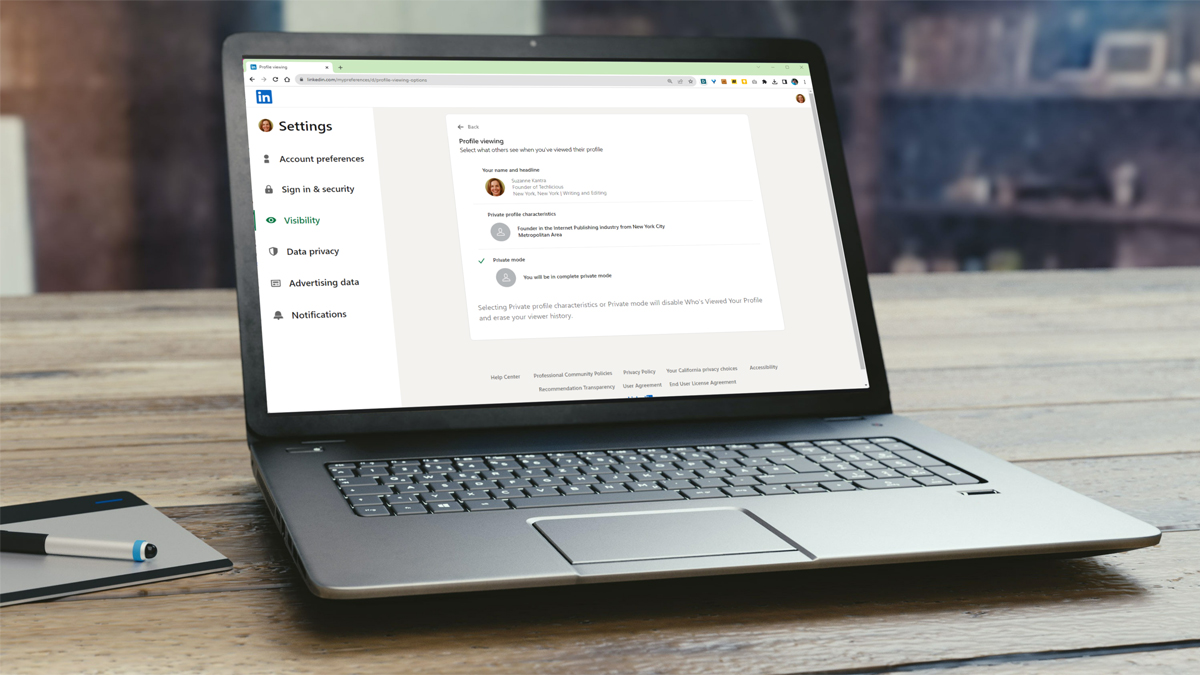
Techlicious editors independently review products. To help support our mission, we may earn affiliate commissions from links contained on this page. It can be easy to forget that LinkedIn isn’t like other social networks. Every time you visit a profile, it’s reported to the user, and that could inadvertently signal a level of interest that you don’t want to reveal. Perhaps you’re researching job candidates or potential clients and don’t want to tip your hand. Fortunately, LinkedIn lets you choose how your profile viewing appears to others, from your full name and title to entirely anonymous. LinkedIn offers three distinct profile visibility settings: Your name and headline This is the default setting, and it reveals your name, headline, location, and industry. This setting essentially lays bare significant details about you. Private profile characteristics This setting falls into the semi-private category, displaying your job title, industry, and location but not your name or company name. Private Mode This mode only reveals to others that a LinkedIn Member stopped by during your profile visits. The downside to using Private Mode (and Private profile characteristics) is that you won’t see who visits your profile, including visitors whose profile is public, unless you subscribe
Read More
Visit a LinkedIn Profile without Them Knowing Using Private Mode – Techlicious
Visit a LinkedIn Profile without Them Knowing Using Private Mode – Techlicious